
Have you ever thought about how your countdown timer sounds?
· 4 min readHi again 👋
Black Friday & Cyber Monday is on the horizon again, and last year shoppers worldwide spent a record $132 billion over the BFCM weekend - up 6.4% from 2024. That’s a LOT of money moving around over a weekend.
And it’s the time of year that many marketing teams will start adding countdown timers to emails and to products. But have you ever tested that countdown timer with a screen reader?
Visually, a timer does a good job, ticking down to midnight, nudging people to make a decision. And visually, you can choose to just ignore it if you want…
But for someone using a screen reader, it can be a very different experience.
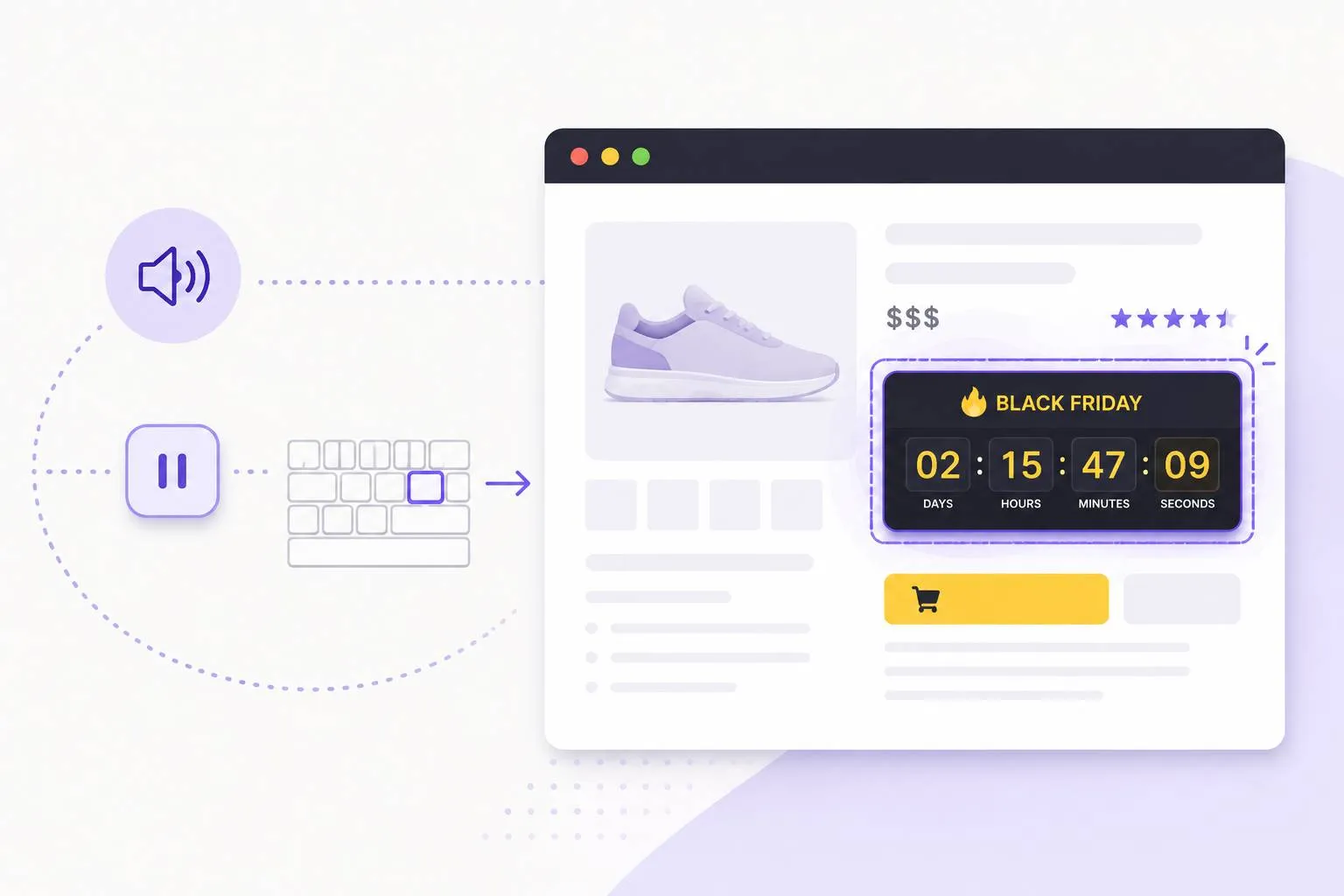
So what does it sound like?
Some countdown timers are poorly built, so that every change gets announced.
Which means every second, the screen reader reads the new time out loud:
“2 hours, 14 minutes, 32 seconds.”
“2 hours, 14 minutes, 31 seconds.”
At best - that’s incredibly annoying - at worst it stops your customer from hearing the product description or picking a size.
What should happen instead?
A screen reader user still needs to know when does the sale end?
So the simplest solution is to write that out in plain text next to the timer. Something like - “Sale ends Monday 30th November at midnight.” Everyone can then perceive it, and it’s clearer for every customer, not only screen reader users.
The timer itself can obviously still be there if it’s useful, and still be read when someone reaches it. It just shouldn’t announce itself every second.
And it’s not just screen reader users who find these tricky either - a constantly changing number next to the price can be hugely distracting for a lot of people, so a way to pause or hide it helps too.
How do you make that this isn’t happening on your own store?
If you’re buying a countdown timer plugin from a third party - then ask the developer if they’ve done their own accessibility testing on it.
Then start with this free Getting started guide - and you’ll be able to check it yourself.
Talk soon,
Dave